
Instructions for Customer Support:
Periodically the Customer will either receive a computer with the incorrect software license or will have a Generic Computer shipped with no software license. Below are instructions for Customer Support to help the Customer provide proper information so that the Software License can be created via OKG Client. This document is internal and should not be shared without prior approval from the Software Manager.
EMI 3-0224-349-01-1 provides instructions for the customer for helping in this process. This document can be sent to the customer, if they don’t have it, to help in the process. Refer to this document in providing instructions to the customer for information that is needed.
1. Following the above mentioned EMI, the Customer should send text file, License Info - <Machine Serial Number>.txt. For example, If the serial number of the machine is EC4-21234, the filename will be License Info – EC4-21234.txt.
2. Create an ITW folder on your C: Drive. Create Sub-Folders of C:\ITW\EVT Wave and C:\ITW\EVT Cleaners. Create another subfolder within these folders dependent on the machine type. Using the example above create the sub-folder C:\ITW\EVT Wave\License Info EC4-21234.
3. Copy the License Info txt file provided by the customer to this newly created folder.
4. Open the Machine PDF’s Network Folder and browse to the Folder containing the original Sales Order for the Machine in which the License is required.
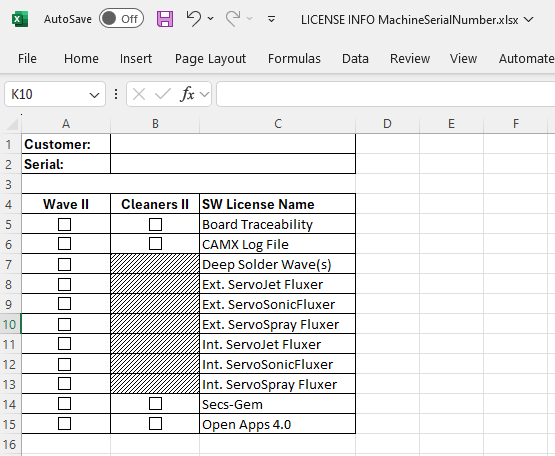
5. Determine what Licenses are required. For example, does the machine have SECS/ GEM, CAMX or Board Traceability. For Wave Machines, does it have an Internal or External Fluxer and what is the type. Does it have Deep Wave or Open Apps Options?
6. Using the table on the next page, check the boxes for options that will require licenses. For most machines, this may be nothing for Cleaners and a Fluxer for Wave Machines.
7. We create the Software License, even when there are no options requiring it. This will allow for future licenses to be created for this computer without having the customer to resend the information.
8. Once the Chart is filled in the OKG Client program will need to be started.
Example 1:
9. Open OKG Client and login using the credentials provided. The username is the same as your PC Login.
10. Once Logged in, the correct Platform must be selected as outlined in Green below.
Example 2:
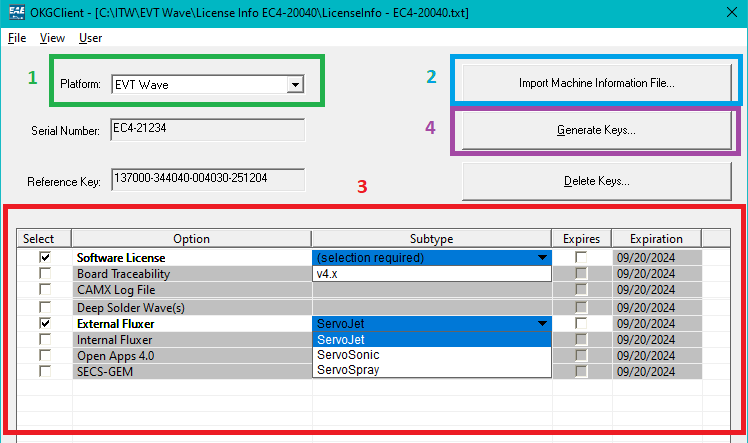
11. Click the Import Machine Information File button and browse to the correct folder, select the txt file and select Open as shown below.
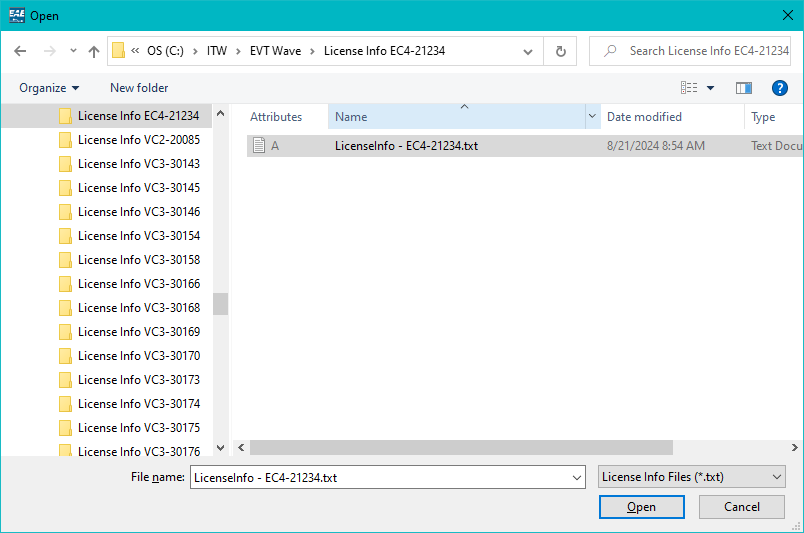
12. The Serial Number of the machine and the Reference Key should be updated.
13. Select the check boxes for License required for the Machine. A Software License is required for all machines. Note: There is a Subtype required for the Software License, External Fluxer, and Internal Fluxer. The Software License will be the current major revision followed by .x. In this example for Wave, there is only one selection, and it is 4.x. There are three possibilities for Fluxers: ServoJet, ServoSonic, and ServoSpray. One of these must be selected for the Subtype if the External or Internal Fluxer is selected. See Example 2 above.
14. Once the License items are selected, click on the Generate Keys button.
15. When prompted, OKGClient – “License keys merge file has been created…”, “Would you like to open Explorer to the containing folder?”, select Yes.
16. Scroll down to the Keys-SerialNumber.YYYYMMDDHHMMSS.reg file. In our example, this could be as shown: Keys-EC4-21234.20240821114059.reg. Copy this file to the folder created in step 2 above.
17. Make a Zipped Copy of this folder, now containing the customer created License File and the Registry file created via OKG Client. Password Protect with 1234 as password. Send the Zipped file to the Customer via ITWEAE File Share or via e-mail.
18. The customer will continue the process using the EMI 3-0224-349-01-1 and install the license file.
19. Open File Explorer and browse to Machine PDF’s on Brattain\Generic PCs\<Customer Name>\<Machine Type>\<SO # PC Serial Number>, see example below.
20. In this example, the <Customer Name> is Plexus, the <Machine Type> is EC4, and the <SO # PC Serial Number> is SO 1046424 SN A3043.
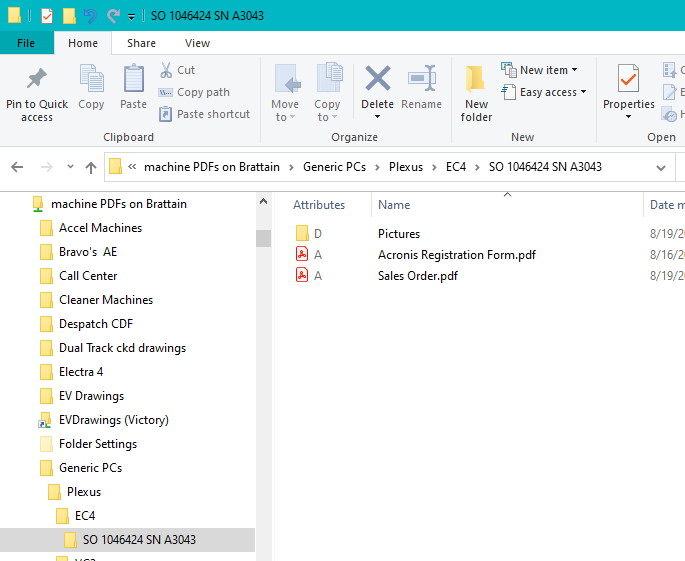
21. Copy the Zipped File to this folder.
22. This <SO # PC Serial Number> folder should be copied to the Retrofits folder in Machine PDFs for the Serial Number of this machine.
Procedure Complete!